


|
- Home
-
About Us
-
- FAMSSM Applications
-
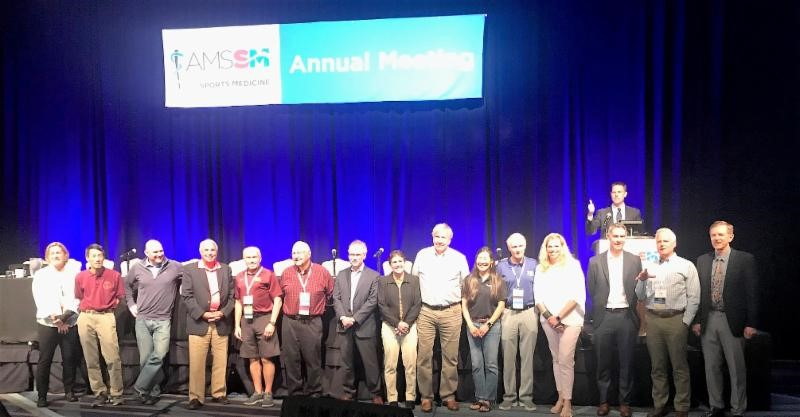
Application submission is now closed for the 2026 Class of AMSSM Fellows. New Fellows will be announced to the AMSSM membership after the first of the year and honored at the 2026 Annual Meeting.
Applications for the FAMSSM Designation will be available on an annual basis. Please contact Ellen Glasgow with any questions regarding the FAMSSM application.
-
- We Understand You
-
Membership
-
- Join or Renew Now
� -


- Join or Renew Now
-
- AMSSM Trainee Case Competition
Event -
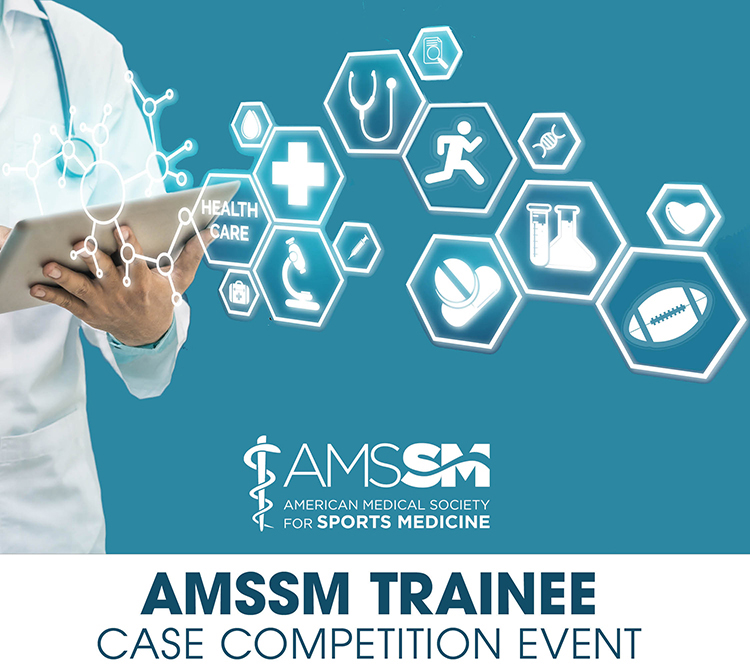
Event: Thurs., Jan. 22, 2026 | 7:30pm-10pm ET
Registration Now Availabile for Fellow, Resident, and Student Members (Limited Registration). To register, Click here. Under the Membership heading, scroll down to the Event Link to register for a spot on a team. Your team will be given a sports medicine case to present at the event.
- AMSSM Trainee Case Competition
-
Communications
-
- Online AMSSM Community for Members
-
AMSSM Collaborate online community provides a forum for year-long connection, giving members the chance to have conversations, share resources and make connections with your peers.
-
- AMSSM Informational Brochures
-
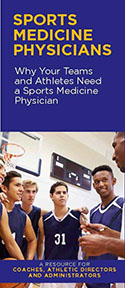
Find informational brochures about sports medicine physicians geared toward coaches, parents and other healthcare professionals.
- AMSSM Informational Brochures
-
Education
-
- Education
- AMSSM Annual Meeting
- Annual Meeting Pre-/Post-Tests
- Conferences
- Abstract Submission
- Case Studies
- US Case Studies
- MSK Radiology Series
- AMSSM YouTube Channel
- Podcasts
- Free ECG Training Module
- Biologic Association
- Online Learning/CME
- Virtual Exam Toolkit
- Testing Center & Review
- Test Score Access
- Traveling Fellowships
- Sports Medicine Curriculum
- Fellowship
- Fellow Online Lecture Series
- Residency
- Medical Student
- Educational Content for Members
-
- AMSSM Sports Medcasts
-
Find all current and past AMSSM Sports Medcast episodes in one convenient location.
-
- AMSSM Fellow Online Lecture Series
-
The AMSSM National Fellow Online Lecture Series features talks from national experts on fundamental sports medicine topics pertinent to fellowship training and sports medicine board certification. Go to the collaborate.amssm.org site and view the available lectures in the Upcoming Events area.
-
- Research
-
Advocacy
-
- Advocacy
- Advocacy
- AMSSM Choosing Wisely Recommendations
- AMSSM Sports Medicine Physician Scope of Practice
- Issue Briefs
- State Legislative Contact Resources
- Legislators / Insurers Resources
- Legislation By State
- Advocacy Resources
- Principles that Determine AMSSM's Support for Policy and Legislation
- Sports Medicine Practice Questions
- High School Team Physician Tool Kit
-
- Legislative and Policy Issues
-
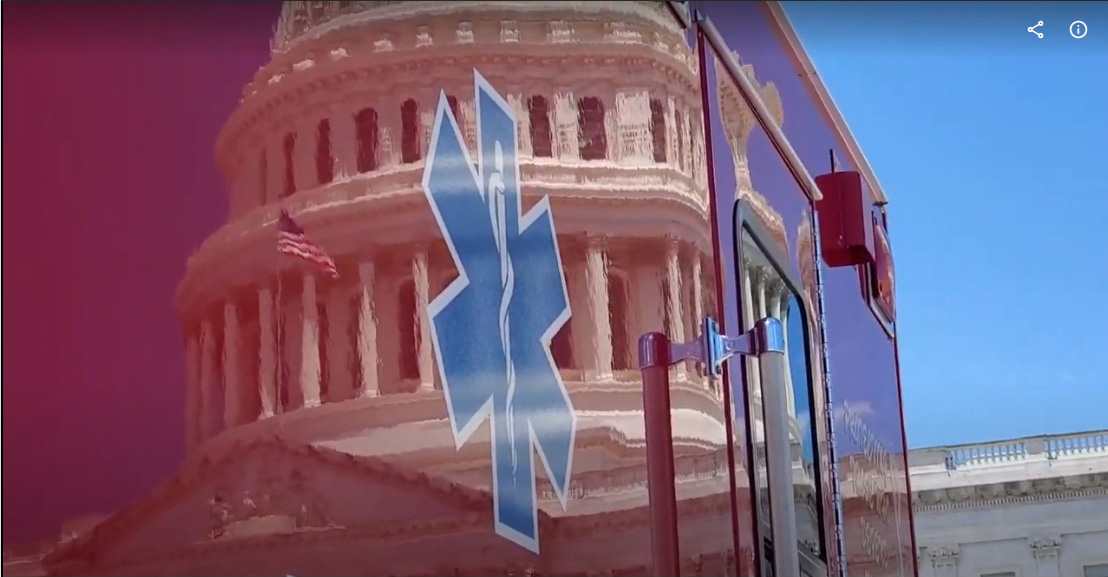
AMSSM is the go-to organization for legislative and policy issues related to sports medicine and athlete health and safety.
-
- Legislation by State
-
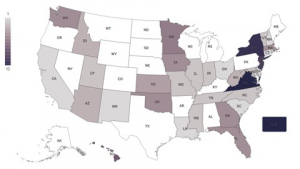
AMSSM offers a variety of advocacy resources, including a map that tracks legislation important to sports medicine physicians.
-
-
Sports US
-
- Sports Ultrasound Online Didactics
-
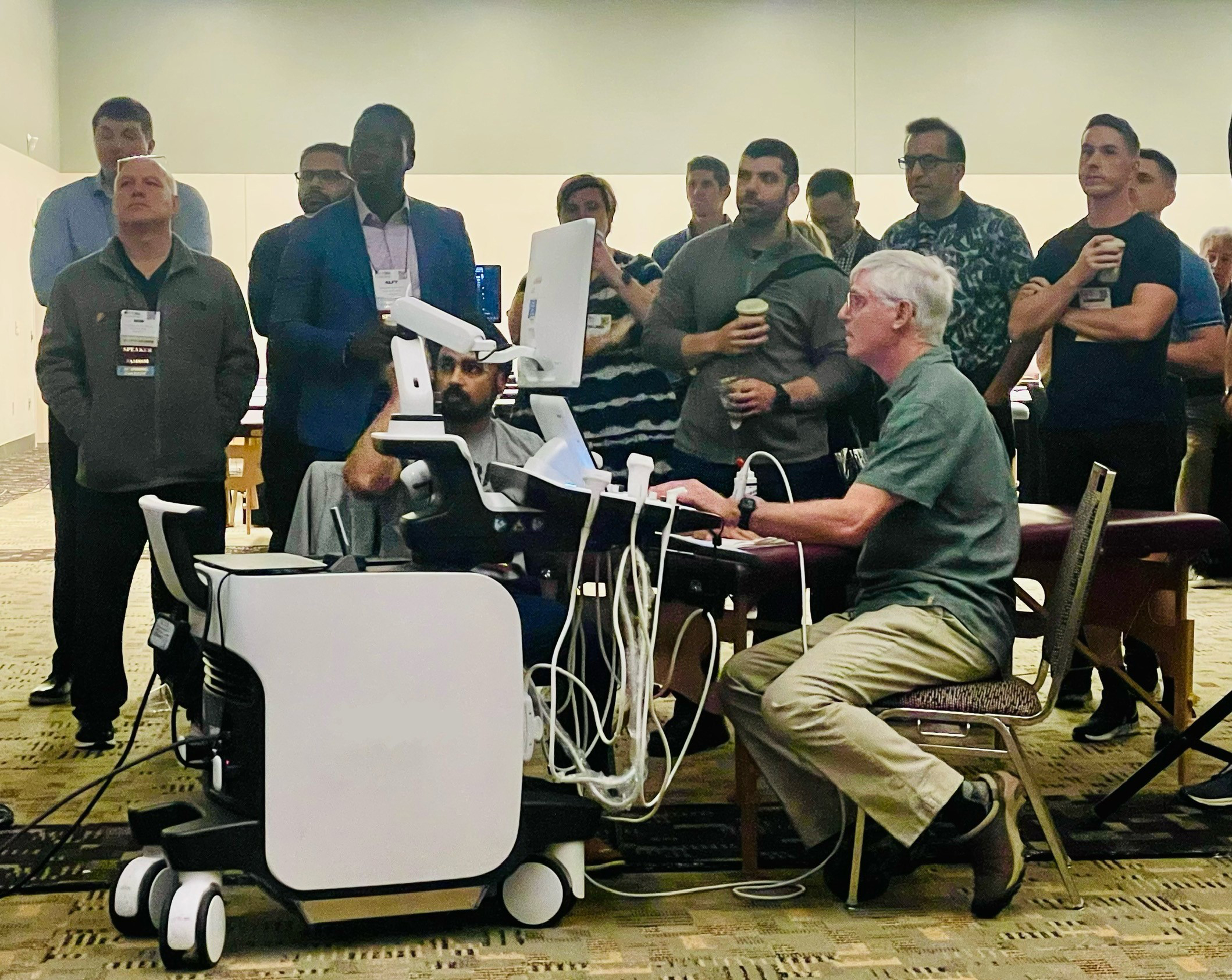
These 35 educational modules cover all of the didactic instructional session topics recommended for sports medicine fellows by the AMSSM.
-
- Sports Ultrasound Committee
-
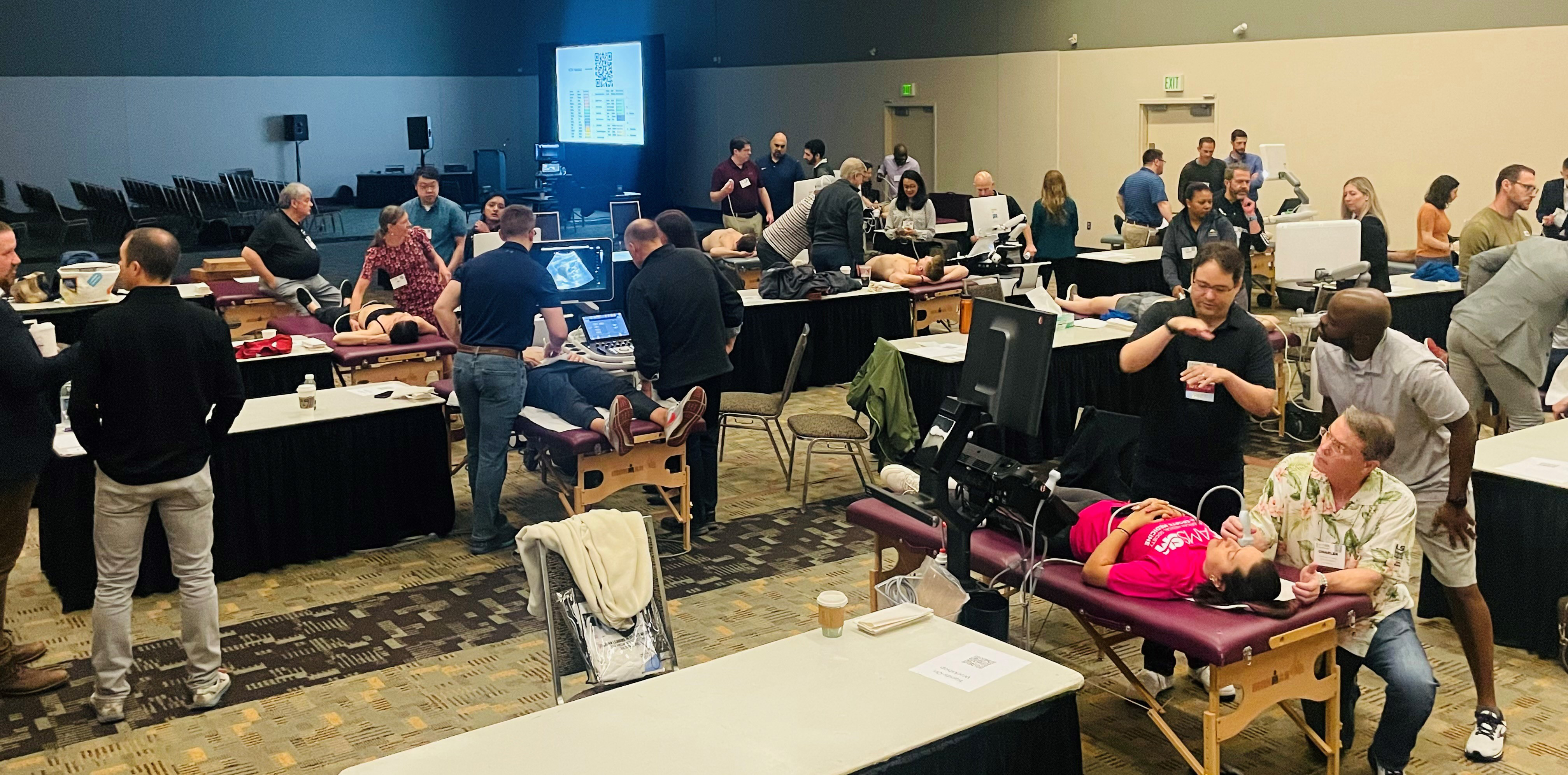
Find all the resources, materials and guidelines from the AMSSM Sports Ultrasound Committee
-
Patients
-
- Need a Sports Medicine Physician?
-
FindADoc
-
- SportsMedToday.com
-
Your comprehensive sports medicine resource for athletes, coaches and parents.













